
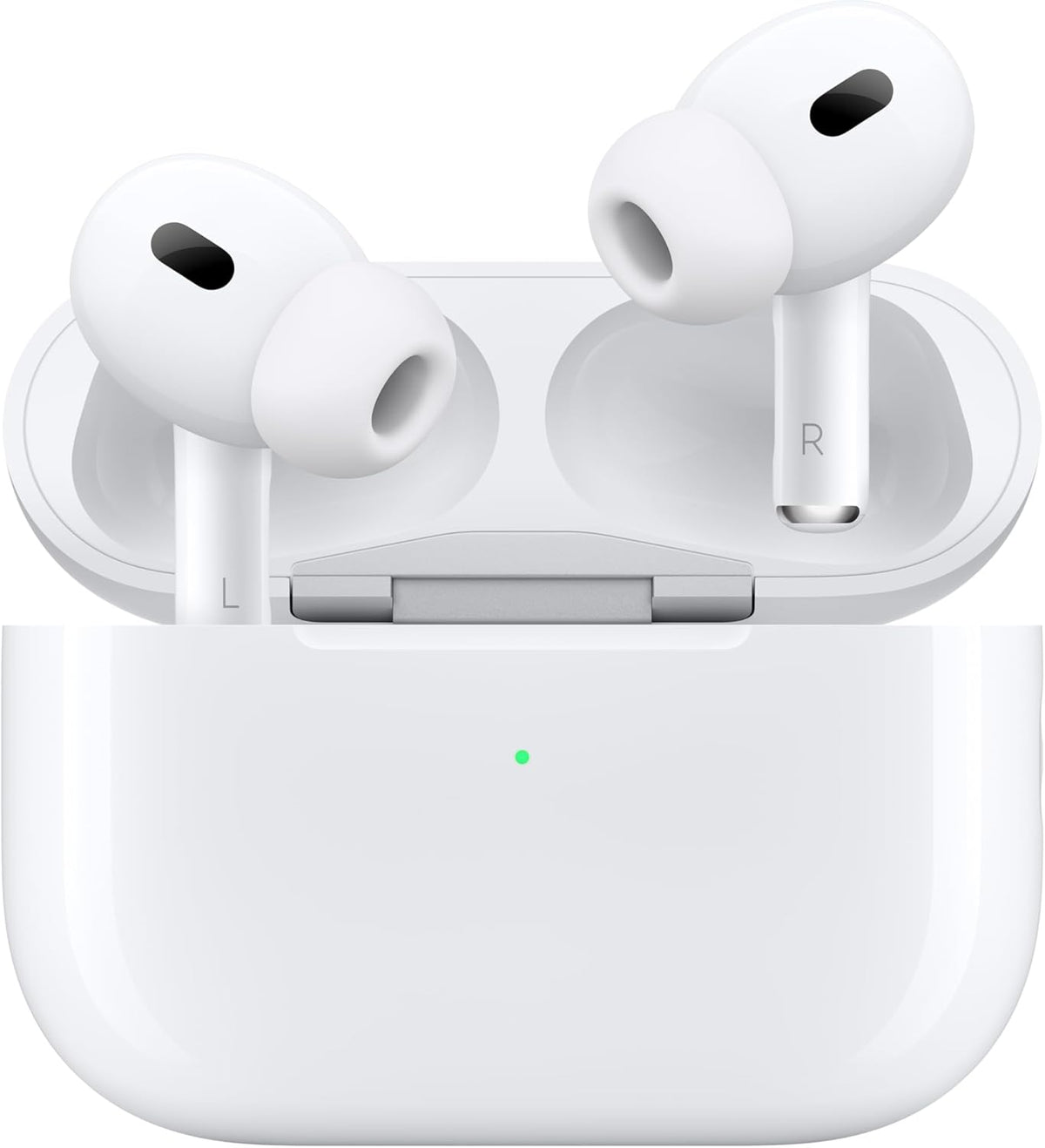
Any standard Bluetooth earbuds will work with an iPhone, not just AirPods. Here is how to pair both, plus a few iPhone settings worth knowing. Pairing gestures differ between earbud models, so keep the manual handy.
Pairing AirPods
These steps apply to AirPods such as the Apple AirPods Pro (2nd generation) with MagSafe Case (USB-C).
- Unlock your iPhone, go to the Home Screen and make sure Bluetooth is on.
- With the AirPods inside, open the charging case lid and hold the case next to your iPhone.
- When the setup animation appears, tap Connect and follow the on-screen steps.
- If no animation appears on AirPods Pro (2nd generation), press and hold the setup button on the back of the case until the status light flashes white. Other AirPods models can differ, so follow Apple's instructions for your model.
Once set up, the AirPods are also available on your other Apple devices signed in with the same Apple Account.
Pairing other Bluetooth earbuds
- Put the earbuds in pairing mode. This is often done by opening the case, or by pressing and holding a button or touch area until a light flashes. Check the manual.
- On your iPhone, open Settings > Bluetooth and make sure Bluetooth is on.
- Wait for the earbuds' name to appear in the list, then tap it.
- If a pairing request appears, tap Pair.
- When the earbuds show as Connected, play a song and make a short test call.
This works for any earbuds that support standard Bluetooth audio. The JBL Wave Buds, for example, list iPhone among their compatible devices.
Useful iPhone settings
- More Info: in Settings > Bluetooth, tap the More Info button (i) next to your earbuds to rename them or to Forget This Device.
- Device Type: for many non-Apple accessories, the same screen has a Device Type option. Setting it to Headphone helps the iPhone measure headphone audio levels correctly.
- Choosing the output: if sound plays from the wrong device, open Control Centre, tap the AirPlay icon on the music controls and choose your earbuds.
- Balance: if one side sounds quieter, go to Settings > Accessibility > Audio/Visual and centre the Balance slider.
Features that depend on the platform
- Google Fast Pair pop-ups are an Android feature, so on iPhone you pair through Settings.
- Some companion apps are Android only. realme's listings, for example, describe the realme Link app as Android only, so app-based features may not be available on iPhone.
- iPhones use the AAC and SBC Bluetooth codecs. Higher-bitrate codecs such as LDAC and LHDC are not supported, so earbuds that offer them fall back to AAC or SBC.
If the earbuds won't connect
- Put the earbuds back in the case for a few seconds, then try pairing mode again.
- Turn Bluetooth off and on in Settings > Bluetooth.
- Forget the earbuds (More Info (i) > Forget This Device) and pair them again.
- Restart the iPhone and check for updates in Settings > General > Software Update.
- If nothing works, reset the earbuds; see How to Reset True Wireless Earbuds (General Steps).
Quick answers
Do non-Apple earbuds work with an iPhone?
Yes. Standard Bluetooth earbuds pair through Settings > Bluetooth. Some extras, such as brand-app features, depend on the platform.
Can I use Siri with non-Apple earbuds?
Many earbuds have a voice assistant gesture or button, and on an iPhone it usually opens Siri. Check the manual for the exact gesture.
My earbuds are connected but sound comes from the iPhone speaker. What should I do?
Open Control Centre, tap the AirPlay icon on the music controls and select your earbuds.
Explore Apple and other wireless earbuds in our store.


